Tips & tricks · Gear · Everywhere · ~10 min a day · 2 min read
Rotate your second monitor to portrait: a whole page at once
Last reviewed:
In this article
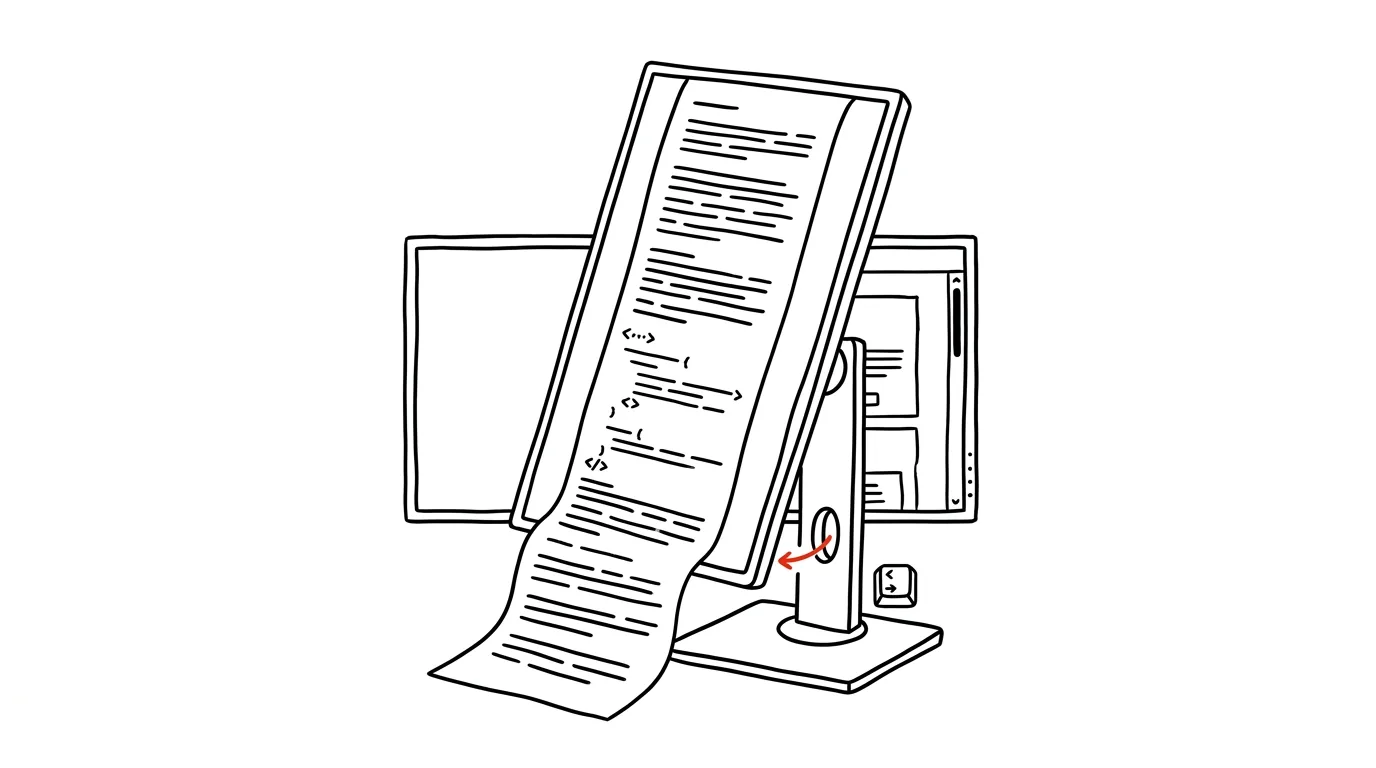
Monitors are sold in landscape because the screen format is inherited from TVs. But most work content is tall: documents, contracts, long emails, webpages, code, PDFs. On a widescreen monitor, you see only a slice of each page and spend the rest of the day scrolling. Yet almost every system can rotate the image 90 degrees — you just physically flip the monitor and toggle one setting. On a two-monitor setup, this is a small revolution: the main screen stays landscape for regular work, and the second one rotates to portrait and becomes a reader.
How to do it
- On Windows, open Settings → System → Display, click the preview of the monitor you want to rotate, and under Display orientation choose Portrait.
- On Mac, go to System Settings → Displays, select the relevant monitor, and set the Rotation field to 90°.
- Physically rotate the monitor. You need a stand that supports rotation (manufacturers call it pivot), or a monitor arm with a VESA mount — a monitor can always be rotated on one of those.
- If your mouse moves between monitors "the wrong way" after rotating, drag the monitor previews in the same settings screen so their relative position matches reality on your desk.
- Check the height too: even on a rotated monitor, the top edge should sit roughly at eye level — see the tip top edge of the monitor at eye level.
A typical scenario
A lawyer named Maria spends all day comparing contracts. On a landscape monitor she could barely see half of each A4 page and had to scroll up and down ten times a minute while checking paragraphs. After rotating her second monitor to portrait, she sees a whole contract page at once, while writing comments on the main monitor beside it. A programmer gets the same effect, fitting double the lines of code on screen at once instead of forty, as does a student with PDF course materials — a textbook page in portrait simply matches how it's printed.
What you get out of it
Less scrolling and, more importantly, continuous context: you see a whole page, function, or chapter at once instead of piecing it together in your head from slices. For document work and long texts, that means noticeably faster reading and fewer missed details. And because the rotation is just a software setting, you can always flip it back — for afternoon spreadsheet work, say, where width wins.
Pro tip
A vertical monitor is also ideal for communication: Slack, email, or a long conversation thread are essentially endless vertical lists. Dedicate the rotated screen to them and you'll see more messages at once, while your main monitor stays entirely free for focused work.
Want to go deeper? The handbook has a whole chapter on it — The complete guide to an effective home office.
Similar tips
Slack: Ctrl+K jumps to any channel or teammate
Ctrl+K
The quick switcher finds a channel, a message, or a person in a few keystrokes. Slack's single most important shortcut.
Formatting in Slack: code, quotes, lists
Backticks turn text into code, three of them make a code block. A readable message saves time on both ends.
Slack search: from:, in:, before:
Operators narrow a search to a specific person, channel, and time period — instead of scrolling through history.
Was this helpful?
Liked this tip?
I send one like it every week by email. Two minutes to read, hours saved.
The Top 30 tips e-book, free — it lands in your inbox right away.
Then 1 tip a week · no spam · unsubscribe in one click
Prefer a system to single tips? The free email course — seven days, seven emails, one skill a day.