Tips & tricks · Apps · Browser · ~10 min a week · 2 min read
A floating video window over everything else
Last reviewed:
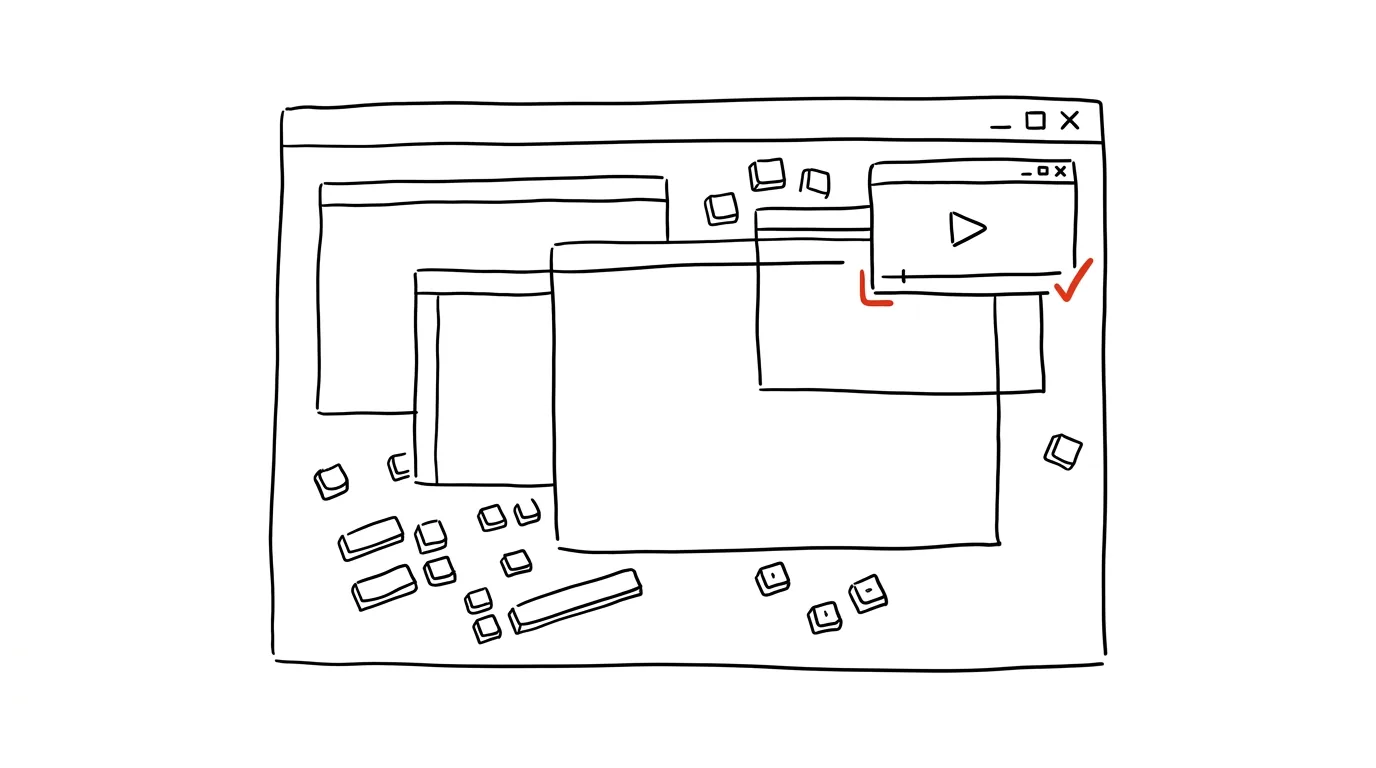
Watching a video tutorial while working along with it is possible even on a single monitor — you don't have to switch back and forth between windows. Picture-in-picture pulls a playing video out into a small floating window that stays above every other app, whether you're working in a spreadsheet, an email, or a text editor. Every major browser supports it, and it takes just two clicks.
A typical scenario
You're installing a new program following a YouTube tutorial. Without picture-in-picture, the video runs in one tab and the installer sits in another app — every few seconds you're switching with Alt + Tab, losing your place, and rewinding the video because you missed a step. With picture-in-picture, you let the video play in a small window in the corner of the screen and work directly in the installer — you see both at once and nothing needs rewinding.
How to do it
- Start the video and right-click it twice — the second context menu offers a Picture in Picture option (works in Chrome and Edge). In Firefox, hovering over the video shows a small picture-in-picture icon directly in the corner of the player instead.
- Clicking this option detaches the video from the page into its own floating window.
- Drag the window anywhere on screen with your mouse — typically to a corner where it's out of the way — and resize it by dragging its corner as needed.
- The window stays visible above every other window regardless of which app you have active, even outside the browser — over Word, Excel, or a terminal.
- Close it with the X button on the window itself, or go back to the original browser tab, where the video returns to its place.
The best tools
- The browser's built-in feature (Chrome, Edge, Firefox, Safari) — free, no install, works on YouTube and most other video platforms.
- Picture-in-picture extensions for Chrome or Edge — force the mode even on sites that normally block it.
- Native picture-in-picture on macOS and Windows — for some video-playback apps, the same floating window works outside the browser too.
What you get out of it
- Time: roughly 5–10 minutes a week saved on switching windows and repeatedly rewinding video to find your place.
- Sanity: no need to remember where you left off in the video — it keeps playing right in front of you.
- Quality: less risk of skipping a step in a tutorial, since you're watching it alongside your work instead of from memory.
Pro tip
Picture-in-picture works great for video calls too: in Meet or Teams, keep a colleague's face in a small window in the corner while you edit the document you're discussing across the rest of the screen.
Want to go deeper? The handbook has a whole chapter on it — The app categories that matter.
Similar tips
Essential Outlook shortcuts: reply, send, switch modules
Ctrl+R
Ctrl+R replies, Ctrl+Enter sends, Ctrl+1/2/3 switches between mail, calendar, and people.
The @ in Outlook: an @mention adds the recipient and flags the task
Type @name in the body of an email — Outlook adds the person to the recipients automatically and highlights that something's expected of them. No more overlooked tasks buried in the CC line.
Delayed delivery in Outlook
Even in Outlook, an email can wait until Monday morning. The new version has Schedule Send right next to the Send button.
Was this helpful?
Liked this tip?
I send one like it every week by email. Two minutes to read, hours saved.
The Top 30 tips e-book, free — it lands in your inbox right away.
Then 1 tip a week · no spam · unsubscribe in one click
Prefer a system to single tips? The free email course — seven days, seven emails, one skill a day.