Tips & tricks · Apps · Everywhere · ~30 min per presentation · 3 min read
Slide Master: change the font everywhere at once
Last reviewed:
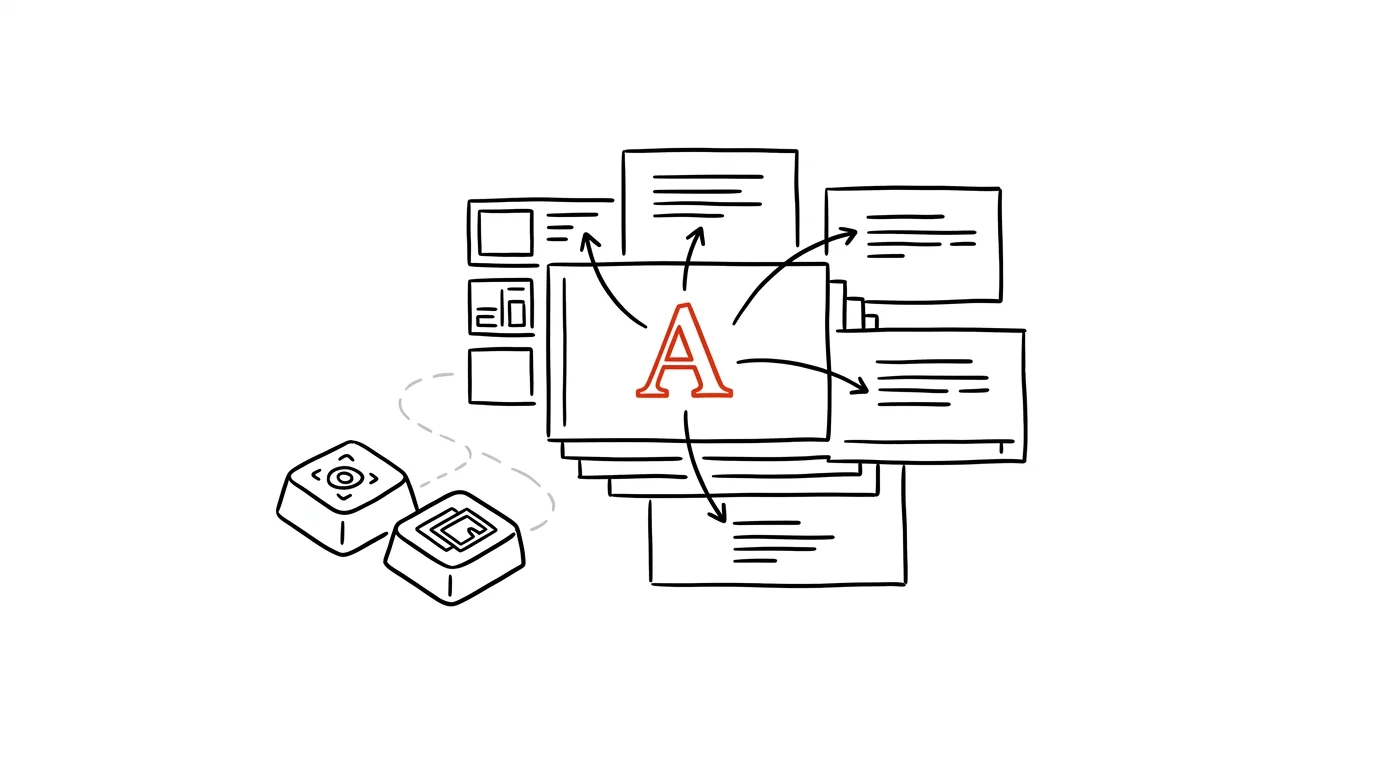
Changing the font on forty slides by hand is the definition of a badly spent afternoon. Yet PowerPoint (and Google Slides, the same way) has had a built-in tool for exactly this problem from the start — one place that controls the look of an entire presentation. Find it once, learn to work in it, and your next brand refresh takes a few minutes instead of hours.
A typical scenario
Your company changed its logo color, and you're on the hook for updating a fifty-slide presentation to match the new visuals. Without the Slide Master, that means opening every slide individually, finding the heading, changing the color, finding the footer, changing the font, and repeating that forty times — and you'll still miss one detail two slides later. With the Slide Master, you open one editing window, update the color and font on the main ("parent") slide once, close the master — and done, the change is propagated to every slide in the presentation at once.
How to do it
- In the top menu, go to View → Slide Master.
- A special editing mode appears: a single large main slide at the top (the actual "master"), with smaller layouts underneath it for individual slide types (title, content, two columns, and so on).
- Anything you change on the topmost main slide — font, text color, logo placement, bullet style — automatically flows down to every layout beneath it, and from there into every slide in the presentation that uses those layouts.
- If you need an exception for just one specific slide type (say, the title page), edit only the relevant layout underneath the master instead of the master itself — the change then only shows up there.
- When you're done editing, click Close Master View (or the equivalent button) — you're back in normal view, and the whole presentation now carries a consistent look.
The best tools
- The built-in Slide Master in PowerPoint and Google Slides — free, works on any presentation regardless of slide count.
- A company template (.potx) — if your company already has a template, saving the edited master as a template ensures future presentations start with the right look right away.
- A set of brand colors and fonts saved in the master — a color scheme and typeface set once are then offered automatically whenever you insert new elements.
What you get out of it
- Time: roughly 20–30 minutes on a medium-sized presentation, compared to going through it slide by slide by hand.
- Consistency: no slide gets left behind with the old font or color, since the change applies across the board.
- A professional impression: a uniform presentation with no visible seams reads as more credible, whether a client sees it or company leadership does.
- Fewer errors: you eliminate the risk of accidentally skipping one of the slides during manual edits.
Pro tip
You can also drop a logo or a page number into the Slide Master just once — it then appears automatically on every slide, without you having to copy it onto each one separately. If you want to skip the logo on the title slide, edit only the title slide's layout.
Want to go deeper? The handbook has a whole chapter on it — The app categories that matter.
Similar tips
In-depth guide · 21 min
SEO with AI: from keyword research to content that ranks
A complete guide with prompts: from seed phrases through clusters and search intent to a content brief, writing without SEO spam, and the era of AI search.
Delete an annoying suggestion from the address bar: Shift+Delete
Shift+Delete
Does your browser keep offering a typo or an old site? Select the suggestion with the arrow key and press Shift+Delete — it's gone for good.
The shutdown ritual: close the day so it doesn't follow you
Five minutes at the end of work: write down loose ends, glance at tomorrow, close the laptop. Work stays at work — even in your head.
Was this helpful?
Liked this tip?
I send one like it every week by email. Two minutes to read, hours saved.
The Top 30 tips e-book, free — it lands in your inbox right away.
Then 1 tip a week · no spam · unsubscribe in one click
Prefer a system to single tips? The free email course — seven days, seven emails, one skill a day.