Tips & tricks · Apps · Windows · ~10 min a day · 3 min read
PowerToys FancyZones: windows into your own grid
Last reviewed:
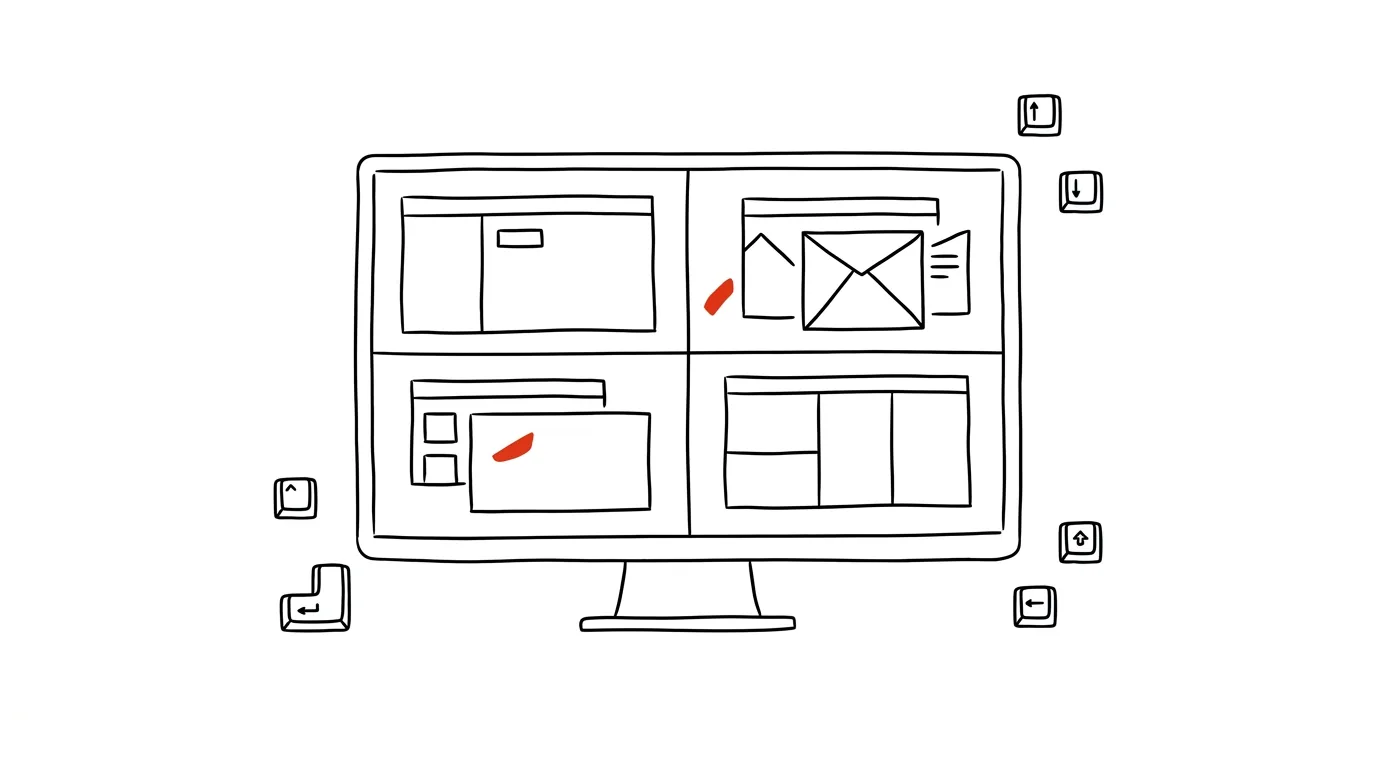
Windows' built-in half-screen snapping isn't enough once you have a wide monitor or work with more than two windows at a time. PowerToys FancyZones is a free module from Microsoft that lets you design your own custom grid of zones — and windows then snap into it on their own, exactly where they belong.
Four windows snap one by one into a grid of zones — each with its own fixed spot.
A typical scenario
You've got a 34-inch monitor and need email, a data spreadsheet, and notes open side by side while you work. Without FancyZones, you drag windows around by hand, eyeball their size by dragging a corner, and once you've got them arranged correctly, all it takes is closing and reopening one window and the whole layout falls apart — you start over. With FancyZones, you design a grid once, save it, and from then on you just drag a window while holding a key — it snaps into a precisely defined zone on screen, the same way every time.
How to do it
- Install PowerToys from the Microsoft Store (a free set of tools straight from Microsoft, not an unofficial add-on).
- In PowerToys, open the FancyZones module and click Launch layout editor — either from the app window or with the shortcut Win + Shift + `.
- In the editor, design a grid suited to your needs — say, three columns side by side, or a combination of one larger main window and two smaller side ones. The editor also offers ready-made layout templates you can just tweak.
- Save the layout, and from then on drag windows while holding Shift — as soon as you release a window over one of the zones, it snaps in and fills its exact dimensions.
- You can set a different layout for each monitor if you have several, and FancyZones can remember which zone recurring apps belong to.
The best tools
- PowerToys FancyZones — free, from Microsoft, the most complete solution for custom window layouts on Windows.
- Windows' built-in window snapping (Win + arrows) — enough on its own, no install needed, for simpler splits into halves or quarters.
- DisplayFusion — a paid tool with more advanced multi-monitor management, useful once FancyZones stops being enough for a very complex monitor setup.
What you get out of it
- Time: roughly 10 minutes a day saved on manually moving and rearranging windows, especially when working on a wider monitor.
- Clarity: every app has its fixed spot, so you orient yourself faster in a split screen.
- Consistency: the layout doesn't disappear after closing and reopening an app — you don't need to rebuild it constantly.
- Less eye and hand strain: less manual dragging and eyeballing window sizes with the mouse.
Pro tip
PowerToys includes other useful modules worth trying too: PowerRename for bulk-renaming files by pattern (say, adding a date to dozens of photo filenames at once), and PowerToys Run, a fast app and file launcher on the shortcut Alt + Space.
Want to go deeper? The handbook has a whole chapter on it — The app categories that matter.
Similar tips
Word without distractions: Focus mode
View → Focus hides the ribbons and leaves just the page. Writing without visual noise.
Word: heading styles instead of manual bold text
Heading 1 and Heading 2 aren't just about looks — they power the navigation pane, an automatic table of contents, and chapter collapsing.
Which tab is that playing from? Find it and mute it
The tab that's making sound gives itself away with a little speaker icon — and in Edge and Firefox, one click on it mutes it.
Was this helpful?
Liked this tip?
I send one like it every week by email. Two minutes to read, hours saved.
The Top 30 tips e-book, free — it lands in your inbox right away.
Then 1 tip a week · no spam · unsubscribe in one click
Prefer a system to single tips? The free email course — seven days, seven emails, one skill a day.