Tips & tricks · Communication · Everywhere · ~10 min a week · 3 min read
Scheduled messages: write it tonight, deliver it in the morning
Last reviewed:
In this article
At quarter past ten at night, it occurs to you what needs sorting out first thing in the morning. Two bad options: send the message right away and light up a colleague's phone in bed, or “remember it for the morning” and reliably forget. Slack and Teams both have a third path, and surprisingly few people know about it: write the message now and schedule it to send at the right time. You get a clear head, your colleague gets an undisturbed evening — and the message arrives exactly when they can actually do something about it.
How to do it
Slack:
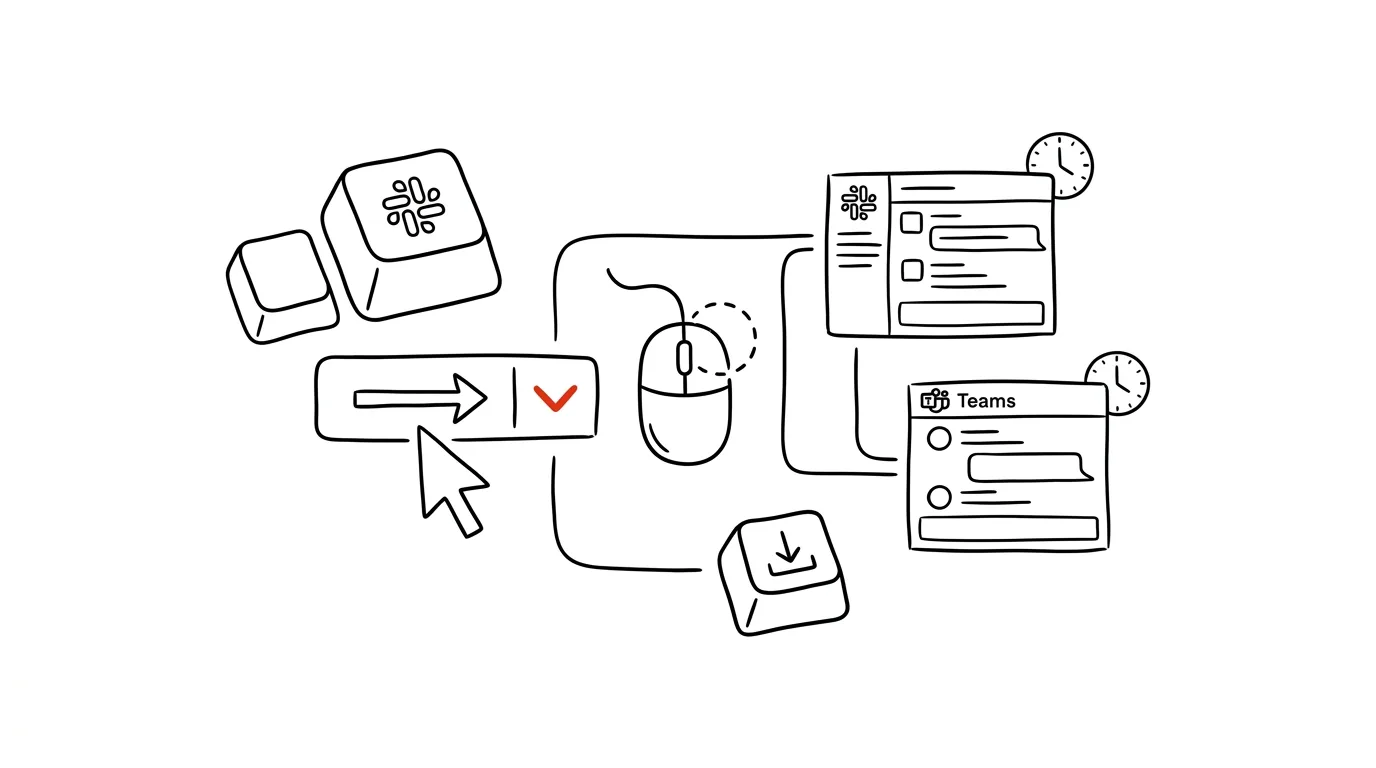
- Write the message, but instead of sending it, click the arrow next to the green send button.
- Pick one of the suggested times (tomorrow 9:00am, etc.), or choose Custom time to set your own date and time.
- Find scheduled messages in the left panel under Drafts & sent → Scheduled — you can edit, reschedule, or delete them any time before they send.
- You can schedule messages to channels as well as direct messages; the feature is available even on the free Slack plan.
Teams:
- Write the message in a chat and right-click the send button (on mobile, long-press the arrow).
- Choose Schedule send, pick a date and time in the mini calendar, and confirm.
- The message shows up in the conversation with a note about the scheduled time; you can edit or cancel it until then.
A typical scenario
A project lead is finishing up the week's plan on Sunday evening and has three notes for three different people. She writes all of them right away, while the context is still fresh in her head, and schedules them for Monday 8:30am. The team gets zero notifications over the weekend — and on Monday morning, everyone finds their task sitting at the top of chat, fresh and impossible to miss, instead of buried under overnight messages.
What you get out of it
You can work whenever suits you without imposing your rhythm on everyone else — the same logic as delayed email sending, just for chat. And messages timed for the start of the workday are less likely to get lost: they arrive while the recipient is actually reading, not while they're asleep. For a manager, it's also a cultural signal: a team that doesn't get messages at midnight doesn't feel like it's expected to work at midnight.
Pro tip
Timing works tactically too: schedule a “reminder, today's the deadline” message for the morning of day D the moment you assign the task. The reminder then sends itself, and you don't have to watch the calendar for it. It also works well across time zones — schedule a message for a colleague in the US for their morning, instead of firing messages at them in the middle of their night. One thing to watch: a scheduled message goes out even if the situation has changed by then. Before a weekend, it's worth running through your queue of scheduled messages and canceling anything that's no longer relevant.
Want to go deeper? The handbook has a whole chapter on it — Professional email communication.
Similar tips
Multiple desktops: separate work from communication
Ctrl+→
Ctrl+arrows switch between virtual desktops. One for focused work, one for mail and chat — and distractions disappear from view.
Paste text without the formatting
Cmd+Option+Shift+V
Cmd+Option+Shift+V pastes text clean — no foreign fonts, colors, or sizes. Saves the look of every document.
Hold a key and pick a character: accented letters without hunting for them
You don't need to hunt through special character tables for accented letters on a Mac — hold a letter down and a menu of all its accented variants pops up.
Was this helpful?
Liked this tip?
I send one like it every week by email. Two minutes to read, hours saved.
The Top 30 tips e-book, free — it lands in your inbox right away.
Then 1 tip a week · no spam · unsubscribe in one click
Prefer a system to single tips? The free email course — seven days, seven emails, one skill a day.