Tips & tricks · Gear · Everywhere · ~5 min a day · 2 min read
Multipoint: headphones connected to your computer and phone at once
Last reviewed:
In this article
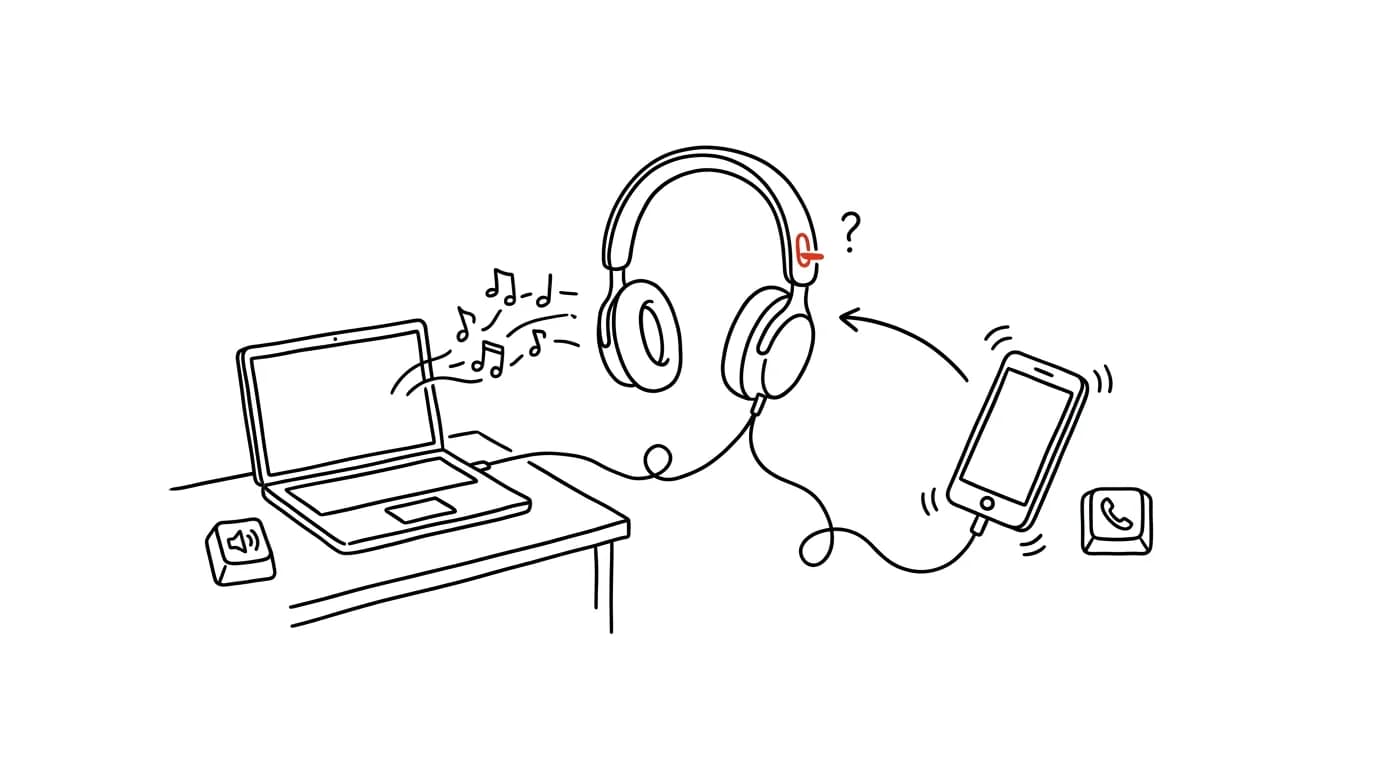
Wireless headphones can be paired with many devices, but they're usually actively connected to only one. Hence the familiar ritual: you're listening to music from your laptop, the phone rings — and you pull the headphones off, because the call goes to the phone, not to them. Or you switch manually through Bluetooth menus, cursing the whole way. Yet a large share of newer headphones support what's called multipoint: an active connection to two devices simultaneously. Music plays from the computer, and when a call comes in on the phone, the headphones switch over on their own. You often just need to turn the feature on first.
How to do it
- Check whether your headphones support multipoint — look in the manufacturer's app or the manual for the words “multipoint” or “connect to two devices.” Plenty of Sony, Jabra, Bose, JBL, and other brand models support it, usually excluding the very cheapest ones.
- Turn it on in the companion app (e.g. Sony Headphones Connect, Jabra Sound+) — on some models it's off by default, because it limits the audio codecs available for the highest sound quality.
- Pair the headphones with both devices — phone and computer. Once turned on, they then connect to both at the same time.
- Test the switching: play music from your computer and call your own phone. The call should automatically interrupt the music and hand it back once you hang up.
- In the Apple ecosystem, AirPods solve the same problem their own way: they hop automatically between iPhone, iPad, and Mac based on where something's playing or ringing, with no manual switching needed.
A typical scenario
Marketer Klara spends half her day in Teams meetings on her laptop, interspersed with calls to clients. It used to mean juggling: headphones plugged into the computer, phone to her ear, or frantically switching in the Bluetooth menu while the phone rang. With multipoint, she keeps her headphones on all day — Teams and mobile calls both go through the same headphones with the same microphone, and Klara just answers calls instead of managing connections.
What you get out of it
An end to the daily switching, digging through Bluetooth menus, and missed first seconds of a call. One pair of headphones covers an entire workday across devices — which, incidentally, also means the microphone is right at your mouth even for phone calls, not just video meetings.
Pro tip
When multipoint behaves erratically (audio “jumps” to the wrong device), it helps to clean up your paired devices list: unpair the headphones from old laptops and tablets you no longer use. The shorter the list, the more predictable the behavior. For why keeping headphones on is worth it for focus too, see noise-cancelling headphones.
Want to go deeper? The handbook has a whole chapter on it — The complete guide to an effective home office.
Similar tips
Pinned tabs: mail and calendar always in the same spot
A pinned tab shrinks to an icon, stays on the left, and can't be closed by accident. The foundation for a stable browser setup.
The middle mouse button: opens and closes tabs too
Middle-clicking a link opens it in a new background tab. Middle-clicking a tab closes it — no need to hit the tiny X.
In-depth guide · 57 min
Vetting a business partner with Hlídač státu: a risk profile before you sign
A complete guide with 23 prompts: run a counterparty through the Register of Contracts, the insolvency register, corporate criminal records, subsidies and political party sponsorship via Hlídač státu's MCP server — then save the result as a versioned risk profile you update with a single prompt before the next contract.
Was this helpful?
Liked this tip?
I send one like it every week by email. Two minutes to read, hours saved.
The Top 30 tips e-book, free — it lands in your inbox right away.
Then 1 tip a week · no spam · unsubscribe in one click
Prefer a system to single tips? The free email course — seven days, seven emails, one skill a day.