Tips & tricks · Apps · Everywhere · ~20 min a week · 3 min read
Flash Fill: Excel Finishes the Pattern for You
Last reviewed:
Ctrl+E
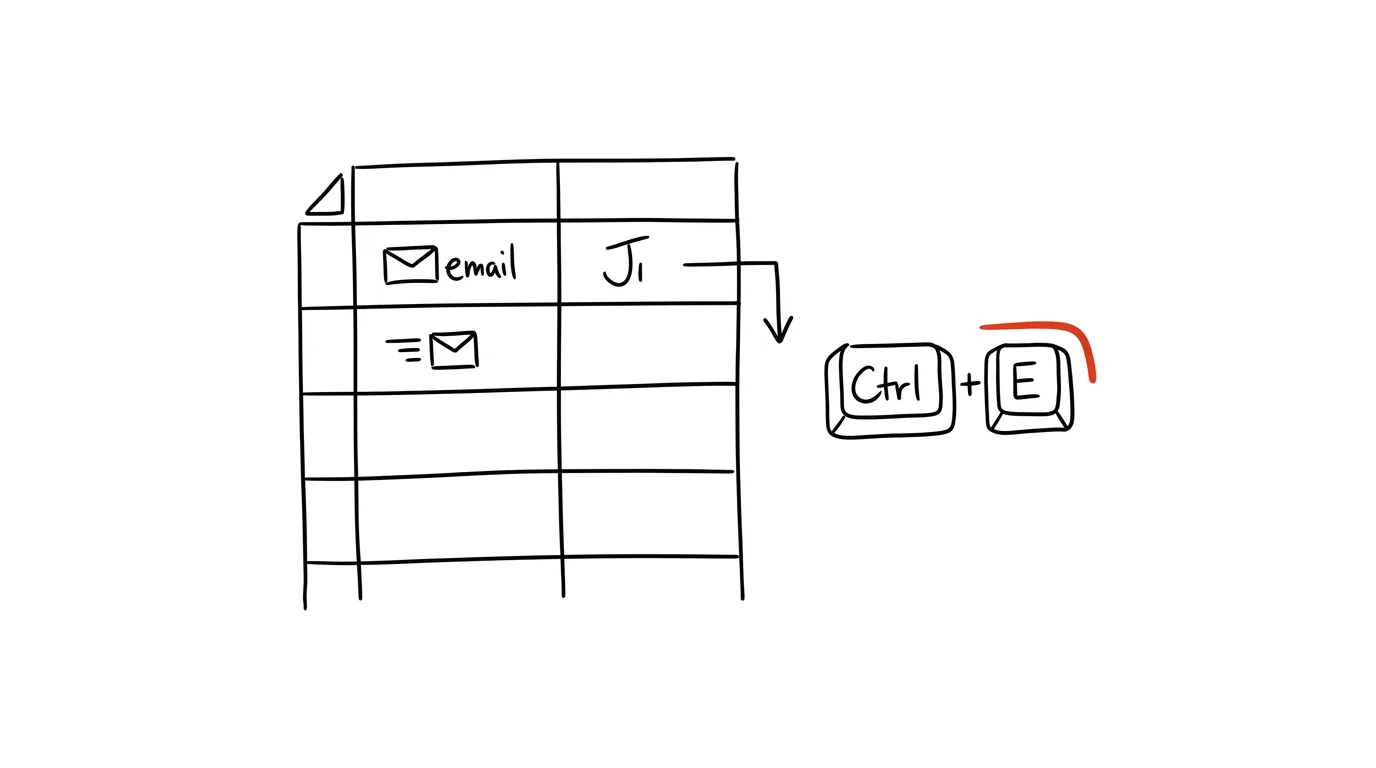
Flash Fill is one of those Excel features that feels almost like magic — you type one example of what the result should look like, and Excel figures out the pattern and fills in the rest of the column. No formula, no macro, no need to know any text functions. It works for splitting, combining, and reformatting text based on a pattern you show it yourself.
A typical scenario
Simona gets a contact export where one column reads “Jan Novák – jan@company.com”, and she needs a separate column of names for a mail merge. Without Flash Fill, she'd have to reach for text formulas, correctly calculate the position of the dash, and drag the formula across hundreds of rows — and a single irregularity in the data (a missing space, a different separator) would break it.
With Flash Fill, she types just the first name, “Jan Novák”, by hand into the next column, presses Ctrl+E, and Excel fills in the rest of the column based on the pattern it recognized — no formula involved.
How to do it
- In the column next to your source data, type the first result by hand, exactly as it should look — for example, the name pulled out of “Jan Novák – jan@company.com”.
- Click back into that cell (or the one below it) and press Ctrl + E — Excel scans your example, infers the pattern, and proposes filling in the rest of the column.
- Before confirming the fill, check the preview (Excel shows it in gray) — with irregular data it can miss in places, and it's better to catch a mistake right away than to go through hundreds of rows after confirming.
- It also works in reverse — combining two columns into one, reformatting phone numbers or dates, or extracting just part of the text based on a pattern you show it.
- When Excel isn't sure about the pattern because the results aren't consistent, fill in a second example by hand on another row and press Ctrl+E again — with two examples, Excel usually guesses the pattern more accurately.
The best tools
- Built-in Flash Fill (Ctrl+E) — the fastest way to do a one-off split or reformat of a column, without a single formula.
- Power Query's “Column From Examples” — a similar idea to Flash Fill, but the result stays as a repeatable step that recalculates on its own every time the data refreshes, useful for regularly imported data.
- Text functions — a bit more work to write than Flash Fill, but unlike it, they recalculate on their own when the source data changes.
What you get out of it
- Time: roughly 20 minutes a week on the kinds of edits that would otherwise require building and debugging a formula or retyping hundreds of cells by hand.
- Accessibility: you don't need to know text-formula syntax — just show one example of the result.
- Fewer errors: Flash Fill works from the actual values in the column, so unlike manual retyping, it doesn't introduce typos.
Pro tip
When Excel isn't sure about the pattern, add a second or third example by hand on more rows and press Ctrl+E again — the more consistent examples it sees, the more accurately it guesses the pattern, especially with data that isn't perfectly regular.
Want to go deeper? The handbook has a whole chapter on it — The app categories that matter.
Similar tips
Block off calendar time for focused work
An empty calendar is an invitation to meetings. Block off your mornings for deep work before someone else does it for you.
A second time zone in your calendar: no more counting hours
Google Calendar and Outlook can both show a second time axis next to your own. Plan a meeting across time zones by looking, not by doing math in your head.
Google Calendar from the keyboard: C creates an event, T jumps to today
C
One letter instead of clicking: C for a new event, T for today, D/W/M to switch views, J and K to page through. A question mark shows every shortcut.
Was this helpful?
Liked this tip?
I send one like it every week by email. Two minutes to read, hours saved.
The Top 30 tips e-book, free — it lands in your inbox right away.
Then 1 tip a week · no spam · unsubscribe in one click
Prefer a system to single tips? The free email course — seven days, seven emails, one skill a day.