Tips & tricks · Apps · Windows · ~5 min a week · 3 min read
Print to PDF: turn anything into a PDF
Last reviewed:
Ctrl+P
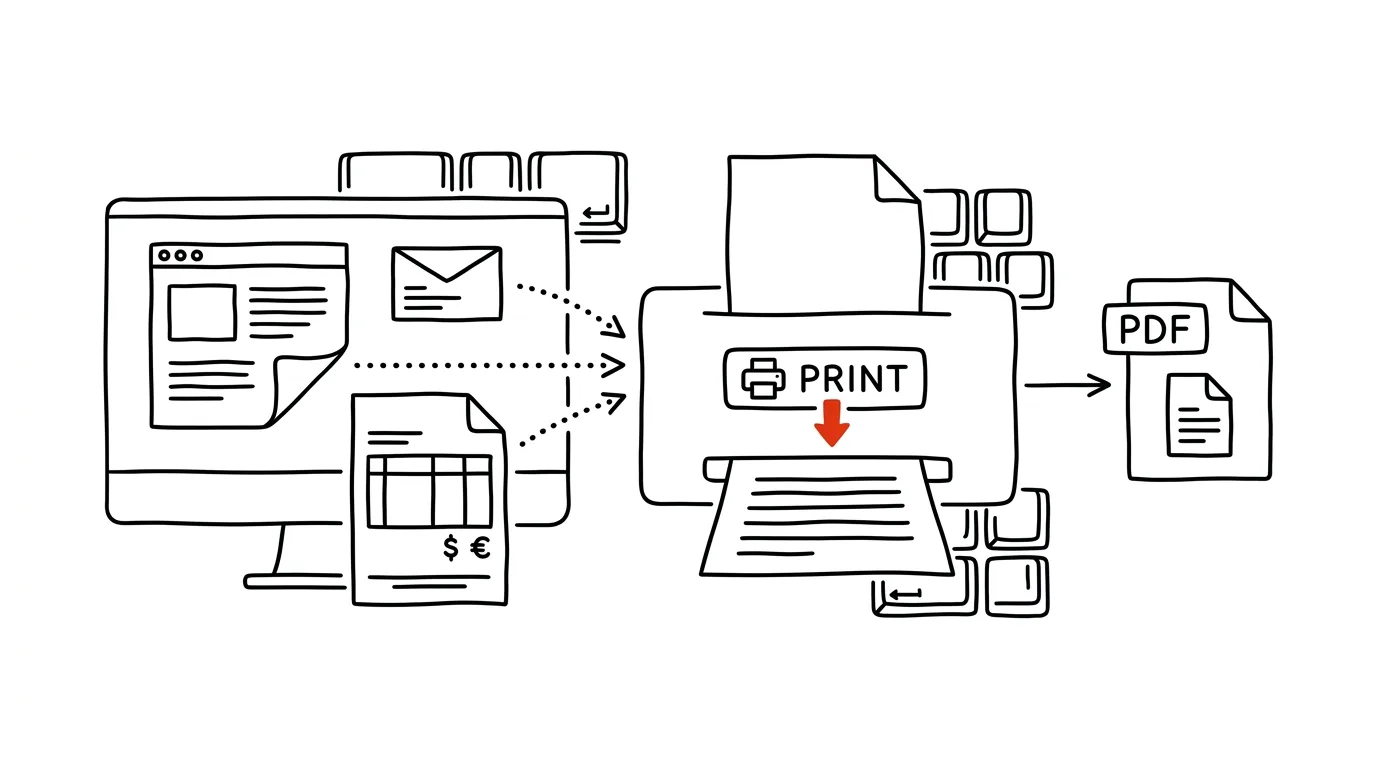
You can produce a PDF version of anything without a single extra add-on. Windows has had a built-in virtual printer for years that saves a document as a PDF file instead of printing it on paper — and it works in literally any app that can print, which is practically all of them.
A typical scenario
You need to send a client an order confirmation from a website, an invoice from your accounting software, or an email as an attachment, but none of those apps has a "Save as PDF" button. The usual fix is downloading some sketchy online converter, uploading sensitive information to it, and hoping the page doesn't hang or the document doesn't end up sitting on someone else's server.
With Microsoft Print to PDF, just press Ctrl + P in any app, choose this virtual option as your printer, and instead of paper you get a PDF file saved wherever you decide — no uploading anywhere on the internet, nothing extra to install.
How to do it
- In the app whose content you want to turn into a PDF (a webpage, email, document, invoice in your accounting system), press Ctrl + P to open the print dialog.
- From the list of printers, choose Microsoft Print to PDF instead of a physical printer.
- Adjust page range, orientation, or scale as needed — the print dialog's settings work exactly as if you were printing for real.
- Click Print, and in the window that opens, choose where to save the resulting PDF file and give it a name.
- The finished file is a regular PDF you can email, upload to the cloud, or archive.
The best tools
- Microsoft Print to PDF — free and built into Windows, works in any app with a print function, no data ever leaves your computer.
- Adobe Acrobat — for more advanced work with the resulting PDF (editing, signing, compression) beyond just creating the file.
- PDF24 or PDFCreator — free alternative virtual printers with extra features like merging multiple PDFs into one.
- Print to PDF in your browser (Chrome, Edge) — a built-in option right in the browser's print dialog, a bit faster if you're only printing webpages.
What you get out of it
- Time: roughly 3–5 minutes a week saved on hunting for online converters or installing unnecessary programs.
- Data security: sensitive documents (invoices, contracts, personal data) never get sent through a third-party web service — the whole process runs locally on your computer.
- Versatility: it works exactly the same in a browser, email client, accounting software, or text editor — one process for everything.
- A professional impression: a client or an office gets a clean, portable PDF document instead of a screenshot or a link that might stop working.
Pro tip
If you need to strip out unnecessary ads or sidebars from a webpage before printing it to PDF, most browsers offer a simplified page view right in the print preview — look for it before clicking Print, and it'll save you manual cleanup of the finished file.
Want to go deeper? The handbook has a whole chapter on it — The app categories that matter.
Similar tips
The two-minute rule for your inbox
Anything that takes less than two minutes, do right when you read it. Longer things go to your task list — and archive the email.
In-depth guide · 64 min
How to write an email people answer
A complete guide to writing emails: subject lines, salutations, formal and casual English, ready-made wording for ten hard situations, and prompts for AI.
Choppy Video Call? A Cable Fixes What Wi-Fi Can't
“You froze” usually doesn't mean slow internet — it means unstable Wi-Fi. An Ethernet cable is the single most reliable upgrade for calls.
Was this helpful?
Liked this tip?
I send one like it every week by email. Two minutes to read, hours saved.
The Top 30 tips e-book, free — it lands in your inbox right away.
Then 1 tip a week · no spam · unsubscribe in one click
Prefer a system to single tips? The free email course — seven days, seven emails, one skill a day.