Tips & tricks · Apps · Windows · ~5 min after a restart · 3 min read
Automatically restoring apps after a restart
Last reviewed:
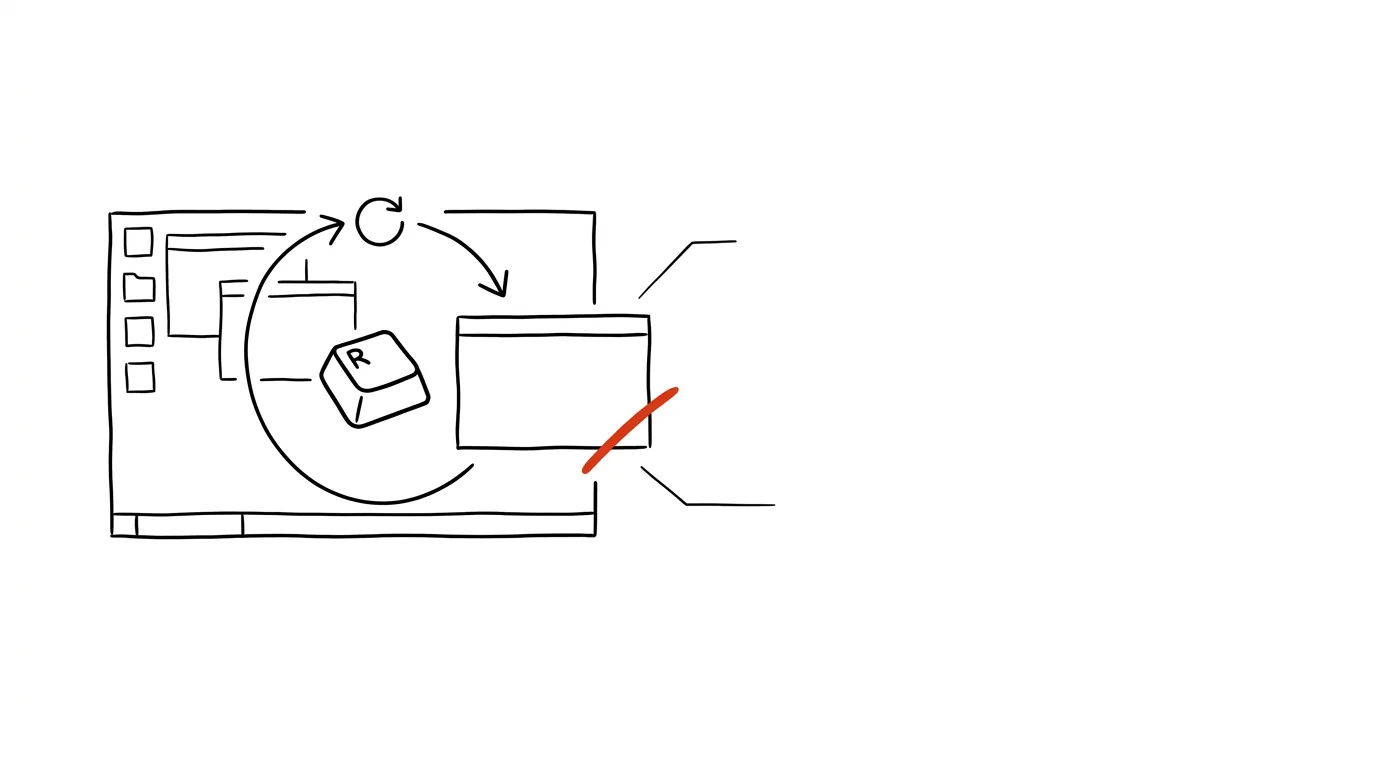
A restart doesn't have to mean starting from zero. Anyone who works with ten windows open — spreadsheets, documents, a browser with dozens of tabs — knows the morning annoyance of finding the computer restarted after an overnight update, with everything gone. Windows can handle this on its own.
A typical scenario
You leave your computer on in the evening with work in progress: a half-written message in a document, an open analysis in a spreadsheet, ten browser tabs full of reference material. Overnight, the system installs updates and restarts. In the morning you log in to a clean desktop with not a single window open, and you have to painstakingly recall everything you had open and go find and reopen it — ten minutes before you're back where you left off yesterday.
With automatic app restoration turned on, Windows reopens exactly what was running before after a restart — documents, spreadsheets, and the browser with its tabs all reappear in their places, as if nothing had happened.
How to do it
- Open Settings → Accounts → Sign-in options.
- Find and turn on Automatically save my restartable apps and restart them when I sign back in.
- From then on, at every restart (whether manual or after installing an update), Windows records which apps were running and relaunches them itself once you sign back in.
- Browsers (Chrome, Edge, Firefox) also have their own setting for restoring tabs on launch — turn it on separately in the browser's settings so you get back your specific open tabs, not just the app itself.
- This feature doesn't restore unsaved content within documents — if an app doesn't have autosave of its own, unsaved text in an unsaved file is still lost on restart.
The best tools
- Windows' built-in app restoration — free, just turn it on once in settings and it works automatically at every restart.
- Browser tab restoration — a built-in option in Chrome, Edge, or Firefox settings for returning exactly where you left off in the browser.
- OneDrive or Google Drive with autosave — for documents where you want assurance that work in progress won't be lost even in an unplanned shutdown.
- AutoSave in Word and Excel — a built-in Microsoft 365 feature that saves changes continuously, so a restart doesn't mean losing unfinished text.
What you get out of it
- Time: roughly 5 minutes after every restart that you'd otherwise spend finding and reopening every document, spreadsheet, and browser tab.
- Peace of mind after overnight updates: the system installs updates on its own at night, and in the morning your workspace is waiting exactly where you left it.
- Less risk of forgetting something: you don't have to remember everything you had open — the system remembers for you.
- A smoother return to work: mornings start with actual work instead of reconstructing yesterday's workspace.
Pro tip
Browsers will also restore their own tabs if you enable it in their own settings (usually a section called "On startup" or "Continue where you left off") — it's worth turning on both settings, the system one and the browser one, together, since each covers a different part of your workspace.
Want to go deeper? The handbook has a whole chapter on it — The app categories that matter.
Similar tips
Align objects with the tool, not by eye
Select objects and let PowerPoint align and space them evenly. The difference between an amateur slide and a clean one.
Presenter view: notes only you can see
The projector shows slides; on your laptop you see notes, a timer, and a preview of the next slide.
Pinned tabs: mail and calendar always in the same spot
A pinned tab shrinks to an icon, stays on the left, and can't be closed by accident. The foundation for a stable browser setup.
Was this helpful?
Liked this tip?
I send one like it every week by email. Two minutes to read, hours saved.
The Top 30 tips e-book, free — it lands in your inbox right away.
Then 1 tip a week · no spam · unsubscribe in one click
Prefer a system to single tips? The free email course — seven days, seven emails, one skill a day.