Tips & tricks · Apps · Everywhere · ~10 min per document · 3 min read
Hidden formatting marks: why a document behaves strangely
Last reviewed:
Ctrl+Shift+8
In this article
Text just won't align, there's a gap between paragraphs you can't delete, a heading jumps to the next page for no obvious reason. The document “behaves strangely” — except it isn't behaving strangely at all, it just contains invisible characters you can't see: double spaces, tabs, page breaks, line breaks left over from pasting from the web. Word can reveal all of them with one button, and the mystery turns into a trivial cleanup.
How to do it
- On the Home tab, click the ¶ button (Show/Hide) — you'll find it in the Paragraph group. The keyboard shortcut is Ctrl + Shift + 8; it may not register on some keyboard layouts, but the button always works.
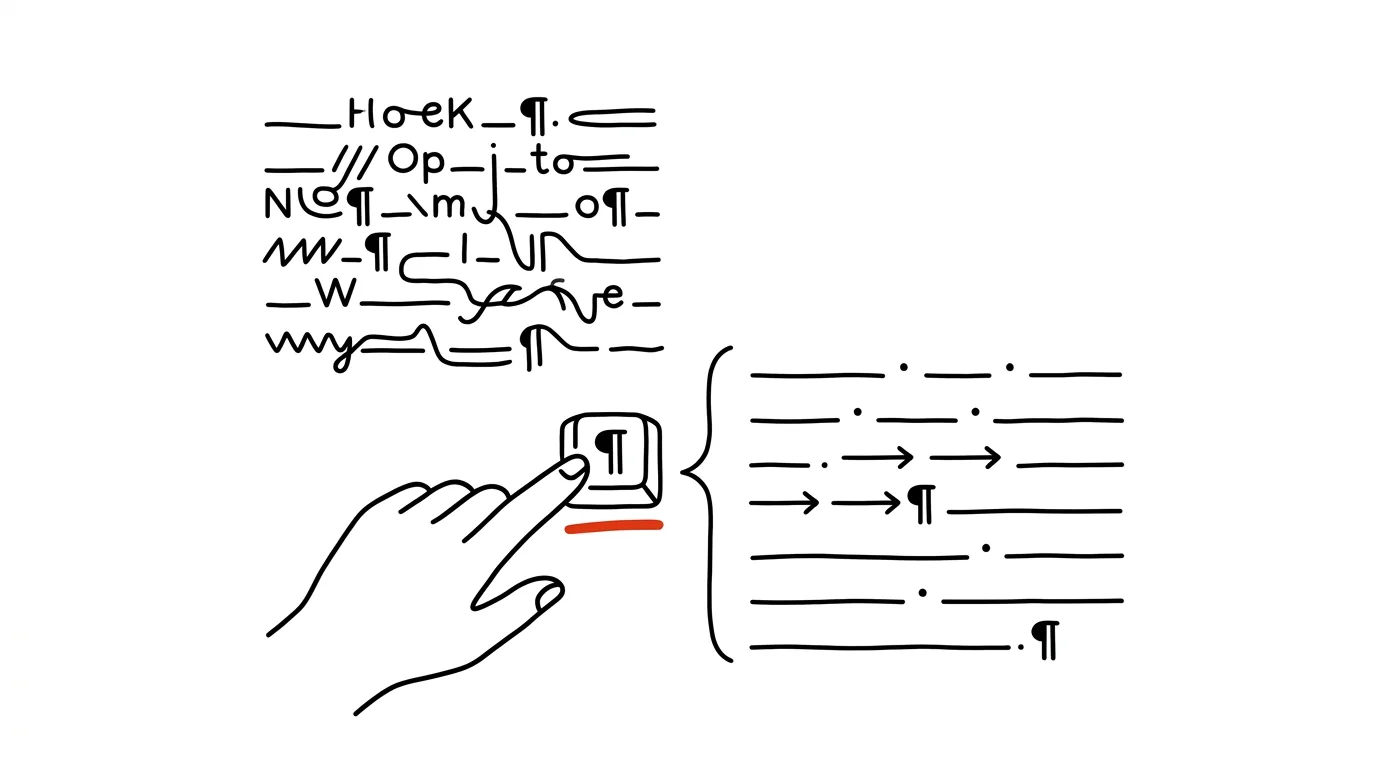
- The document lights up with markers: a dot in the middle of a line is a space, an arrow is a tab, ¶ marks the end of a paragraph, a bent arrow is a soft line break (Shift+Enter), and a “Page Break” shows up as a labeled line.
- Now you can see the actual cause of the problem: two dots side by side = a double space, a column of ¶ marks stacked up = empty paragraphs padding out the text, a tab where there should have been a space.
- Just delete the unneeded characters like regular text. When you're done, the same button turns the marks back off — they never make it into print or a PDF.
- In Google Docs, the equivalent lives under View → Show non-printing characters.
Once you've made peace with the marks, you can pick a middle ground: in File → Options → Display, you can permanently show just some of them — say, paragraph marks and tabs — while dots for spaces stay hidden. The document's structure is visible at all times without the text getting overgrown with symbols.
A typical scenario
A designer receives materials from a client “in Word, ready for layout.” The text looks aligned, but falls apart with every edit: indents are built out of five spaces each, paragraphs are separated by triple Enters, and one heading stays on its page only thanks to a manual page break left from an old version. Without the marks turned on, he'd be fixing the fallout and scratching his head; with them, within a few minutes he sees the whole construction and cleans it up systematically — spaces via bulk find and replace, empty paragraphs by deleting them.
What you get out of it
An end to fighting an invisible opponent. Instead of randomly deleting and testing, you see exactly which character is causing the problem — and fixing a “broken” document shrinks from a frustrating half hour to a few minutes. Anyone who works with other people's text should know this button first.
Pro tip
The most common source of chaos is documents assembled from text pasted in from websites and emails. A habit that solves the problem at the source: paste foreign text without formatting via Ctrl+Shift+V.
Want to go deeper? The handbook has a whole chapter on it — The app categories that matter.
Similar tips
In-depth guide · 64 min
How to write an email people answer
A complete guide to writing emails: subject lines, salutations, formal and casual English, ready-made wording for ten hard situations, and prompts for AI.
Choppy Video Call? A Cable Fixes What Wi-Fi Can't
“You froze” usually doesn't mean slow internet — it means unstable Wi-Fi. An Ethernet cable is the single most reliable upgrade for calls.
A New Line Inside a Cell: Alt+Enter
Alt+Enter
Enter jumps to the next cell — Alt+Enter creates a line break inside the same one. No more broken layouts.
Was this helpful?
Liked this tip?
I send one like it every week by email. Two minutes to read, hours saved.
The Top 30 tips e-book, free — it lands in your inbox right away.
Then 1 tip a week · no spam · unsubscribe in one click
Prefer a system to single tips? The free email course — seven days, seven emails, one skill a day.