Tips & tricks · Apps · Everywhere · ~15 min per workbook · 2 min read
Grouping Sheets: Edit a Dozen Excel Sheets at Once
Last reviewed:
In this article
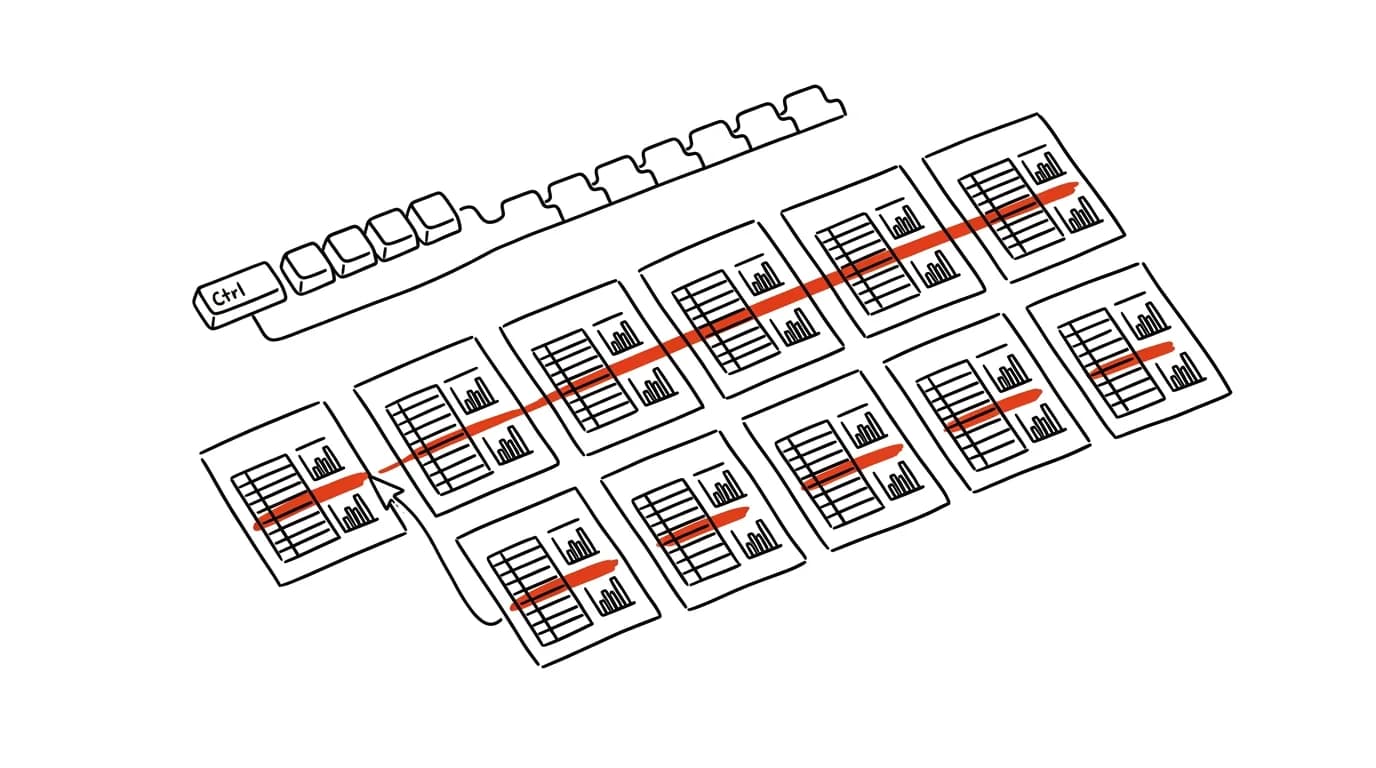
Anyone who does reporting knows the workbook with one sheet per month, branch, or project — and along with it, the tedious job it brings: adding a row to the header means opening twelve sheets and doing the same thing twelve times. Excel can actually group sheets — select several at once, and anything you do in one gets carried out in all of them: typing, formulas, formatting, deleting, print settings.
How to do it
- Click the first sheet's tab at the bottom, and with Ctrl (on a Mac Cmd) held down, click the other tabs you want to edit together. For a contiguous run of sheets, it's faster to click the first and Shift + click the last.
- The selected tabs turn white, and [Group] appears next to the filename in the title bar — the workbook is now in group-edit mode.
- Whatever you do in the active sheet now happens in every grouped one: typed text and formulas land in the same cell everywhere, formatting changes, column width, and row deletion all apply to the whole group.
- Group every sheet at once via right-click on any tab → Select All Sheets.
- Ungroup by clicking any tab outside the group, or right-click a tab → Ungroup Sheets.
The trick makes sense for sheets that share the same structure — values and formats get written to the same cell addresses, so if each sheet's header sits somewhere different, a bulk edit does more harm than good. Template-style workbooks (months, branches, weeks) are ideal terrain, on the other hand.
One big caution: as long as the group is active, you're overwriting every sheet at once — even when you're not thinking about it. Get in the habit of ungrouping right after a bulk edit and watching for the [Group] label in the title bar.
A typical scenario
An office tracks attendance across twelve monthly sheets. A new employee joins in January and the table header needs updating. Without grouping: insert a row twelve times, type the name, copy the format, fix the sum formula, twelve separate times. With grouping: Ctrl+click twelve tabs, edit once — and every sheet is done in the same instant, guaranteed identical.
What you get out of it
Bulk edits of structured workbooks in a fraction of the time, and without the most common mistake in these operations — a sheet that got forgotten, or an edit applied slightly differently each time. What you do once is identical everywhere — and that applies to fixes too: a typo in the header gets corrected across all twelve months with a single retype.
Pro tip
Grouping counts for printing too: select a group of sheets and hit print, and all the selected sheets print at once — the fastest way to turn a monthly workbook into a whole year in a single PDF.
Want to go deeper? The handbook has a whole chapter on it — The app categories that matter.
Similar tips
Block off calendar time for focused work
An empty calendar is an invitation to meetings. Block off your mornings for deep work before someone else does it for you.
A second time zone in your calendar: no more counting hours
Google Calendar and Outlook can both show a second time axis next to your own. Plan a meeting across time zones by looking, not by doing math in your head.
Google Calendar from the keyboard: C creates an event, T jumps to today
C
One letter instead of clicking: C for a new event, T for today, D/W/M to switch views, J and K to page through. A question mark shows every shortcut.
Was this helpful?
Liked this tip?
I send one like it every week by email. Two minutes to read, hours saved.
The Top 30 tips e-book, free — it lands in your inbox right away.
Then 1 tip a week · no spam · unsubscribe in one click
Prefer a system to single tips? The free email course — seven days, seven emails, one skill a day.