Tips & tricks · Apps · Mobile · ~10 min a day · 3 min read
Type by swiping: a third faster
Last reviewed:
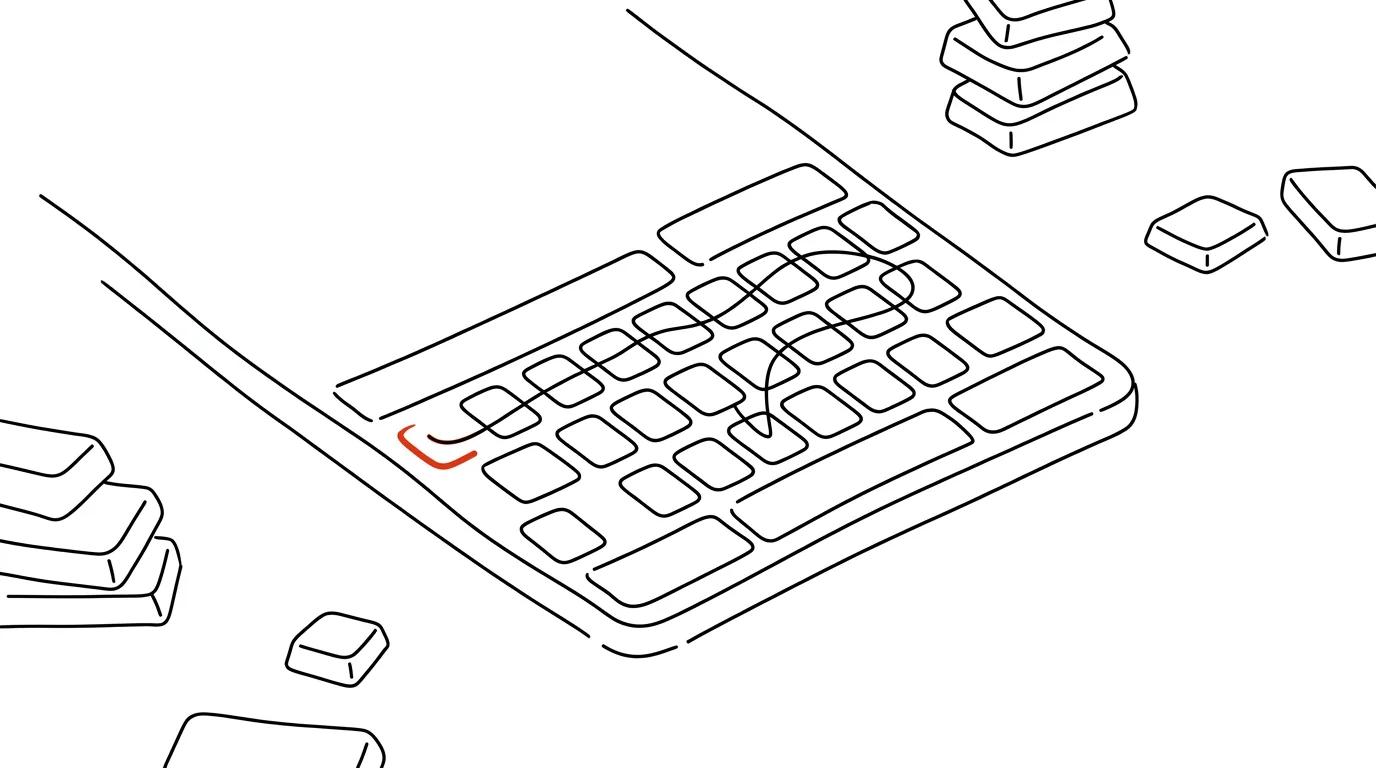
Tapping out letters one by one is slow and tiring on a small touchscreen keyboard — your fingers have to land precisely, mistakes pile up, and your thumb tires after a few paragraphs. Swipe typing solves both problems: you just glide your finger across the letters of a word without lifting it between characters. It looks like a trick for speed typists, but anyone can pick it up in a few days.
A typical scenario
Marketer Lukáš answers emails mostly from his phone — between meetings, on the go, in line. Tapping out letters, a longer reply can easily take him two minutes full of typos and corrections, because a small phone keyboard doesn't forgive imprecise taps.
When he switched to swipe typing, the first few days felt odd — his finger glides across the keyboard in loops instead of precise taps. After a week of getting used to it, though, he was typing noticeably faster and, more importantly, with fewer mistakes, because the keyboard recognizes the word from the shape of the swipe, not the precision of individual touches.
How to do it
- Gboard (available for both Android and iPhone) has swipe typing ready right after installation — just glide your finger smoothly across the letters of the word you want to type, from the first character to the last.
- The word inserts automatically the moment you lift your finger off the screen; the keyboard adds the space between words on its own, no need to swipe over it.
- The keyboard learns from context and suggests the most likely word even for an imprecise swipe — if it suggests the wrong word, tap the alternative offered above the keyboard to fix it easily.
- English works surprisingly well despite its own quirks — give it about three days for your fingers to pick up the fluid motion instead of individual taps.
- If you need to type a word outside the dictionary (code, a name, an abbreviation), just switch back to regular tapping — both methods work on the same keyboard without switching apps.
- New or unusual words (last names, technical terms) get added to the keyboard's dictionary on their own once you type and confirm them a few times — the longer you use the keyboard, the better it predicts you.
- Neither the speed nor the exact shape of the swipe matters — the keyboard recognizes the word by which letters your finger passed through, not by how smooth or fast the motion was.
The best tools
- Gboard (Google) — built-in swipe typing support for free, works on both Android and iPhone.
- SwiftKey (Microsoft) — an alternative keyboard with the same feature, strong at predicting the next word from sentence context.
- The built-in iOS keyboard — has its own swipe-typing variant right in the system, no need to install anything extra.
- Fleksy — a lesser-known alternative focused on swipe-typing speed, with its own word-prediction system.
What you get out of it
- Speed: swipe typing is roughly a third faster than tapping, especially for longer messages.
- Fewer typos: the keyboard goes by the shape of the swipe and context, so it forgives imprecise touches that would be typos when tapping.
- Less thumb fatigue: a fluid motion is gentler than repeated precise taps on a small surface.
- Time: for people who regularly type on their phone, roughly 10 minutes a day saved on typing and corrections.
- Smoother typing on the move: swiping works even one-handed while walking or on public transit, where precise tapping on small letters tends to be harder.
Pro tip
Swipe typing also works for whole short phrases, not just single words — on some keyboards you can swipe right across the space between words and the system inserts the space automatically without breaking the swipe. Try it on common phrases like "thanks so much" or "talk soon."
Want to go deeper? The handbook has a whole chapter on it — The app categories that matter.
Similar tips
Screenshot the Whole Page — Even the Part You Have to Scroll To
Ctrl+Shift+S
Edge and Firefox capture an entire web page from header to footer with a single command. No extensions, no stitching pieces together.
Dictate instead of typing: you talk 3x faster
Win+H
Win + H on Windows, or the microphone on your phone's keyboard. Dictate a first draft of an email in a third of the time.
Google Docs: @ inserts people, dates, and templates
Type @ and insert a mention of a coworker, a date, a checklist, or a whole meeting template. The fastest way to structured documents.
Was this helpful?
Liked this tip?
I send one like it every week by email. Two minutes to read, hours saved.
The Top 30 tips e-book, free — it lands in your inbox right away.
Then 1 tip a week · no spam · unsubscribe in one click
Prefer a system to single tips? The free email course — seven days, seven emails, one skill a day.