Tips & tricks · Shortcuts · Windows · ~2 min a day · 2 min read
Shift+Click on the Taskbar Opens a Second Window of an App
Last reviewed:
In this article
You click File Explorer's taskbar icon because you want a second window — and Windows just brings the one already open to the front instead. So you go through the app's menu, or open a window and hunt for how to spawn another. Yet the difference is a single key: Shift+click on the icon doesn't activate the running window, it launches a new instance of the app. And that's not the only trick hiding in taskbar icons.
How to do it
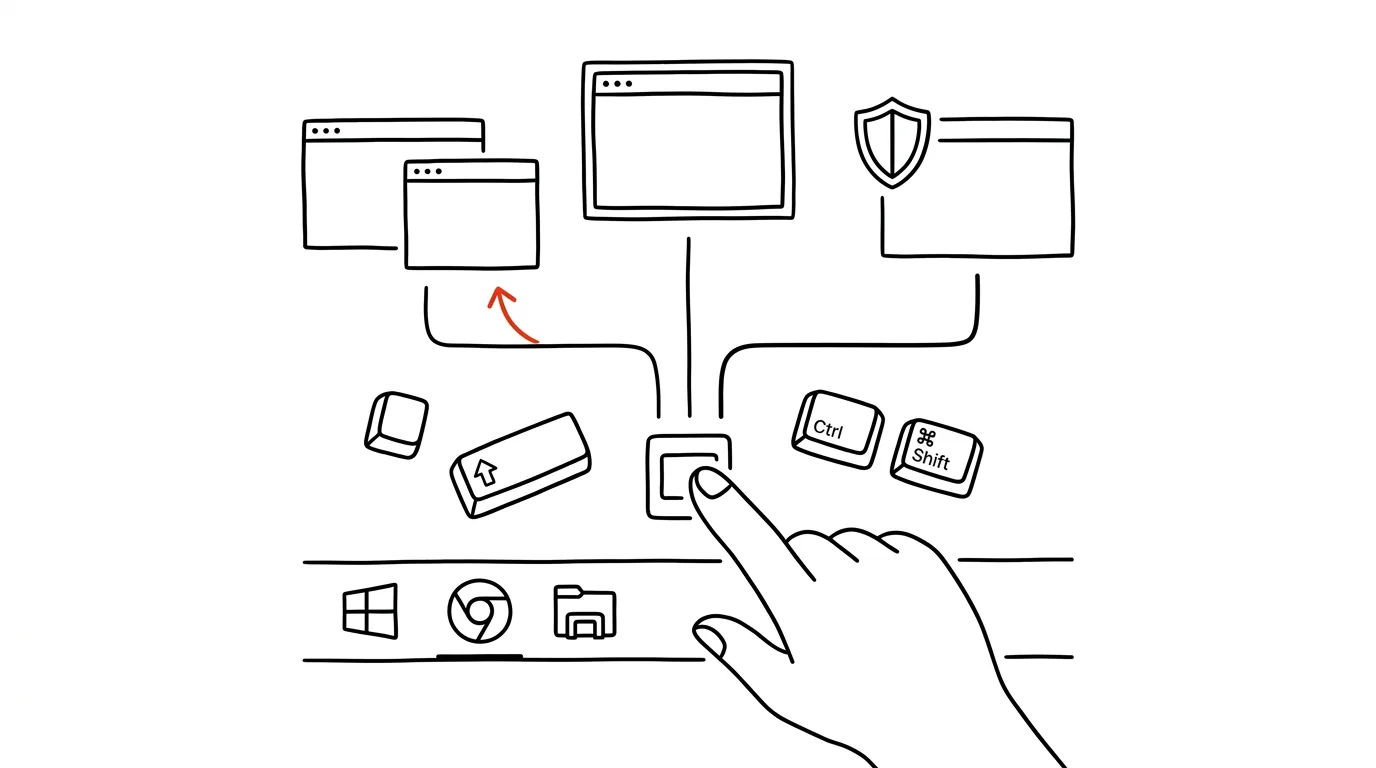
- Shift + click an app's taskbar icon opens a new window (a new instance) — a second File Explorer, a second browser window, a second notes window. Clicking with the middle button (the scroll wheel) does the same thing.
- Ctrl + Shift + click launches the app as administrator — handy for a terminal or an installer, no digging through the Start menu and right-click needed.
- When an app has multiple windows open, Ctrl + click on its icon cycles through them one by one — faster than hovering over thumbnails and picking.
- Right-clicking an icon shows a jump list: recently opened files and pinned items. Pin a frequently used document here and it's two clicks away, permanently.
A typical scenario
You're copying files between two folders. Clicking File Explorer drops you into one window; you need two side by side. Shift+click the icon — and a second window exists — send one to the left half of the screen with the Win+arrow shortcut, the other to the right, and drag away.
A developer's scene: you need an elevated terminal to install a system service or edit the hosts file. Instead of Start → type the name → right-click → Run as administrator, just Ctrl+Shift+click the pinned terminal icon. One motion.
What you get out of it
- Second windows without ceremony: two File Explorer windows, two browsers, two notes windows — one click with an extra key.
- Faster admin launches: tasks needing admin rights stop requiring a trip through the Start menu.
- Clarity across many windows: cycling with Ctrl+click is the fastest way to move between six windows of the same app.
- Frequent files within reach: pinned documents in the jump list turn an app's icon into a shortcut to work in progress too — open your weekly report or main project spreadsheet with a right-click from anywhere.
Pro tip
These tricks combine beautifully with the Win+1 through 9 shortcuts: Win+number activates the app at that taskbar position — and Shift + Win + number opens a new window of it directly, with no mouse at all.
Want to go deeper? The handbook has a whole chapter on it — The app categories that matter.
Similar tips
git commit --amend: Fix the Last Commit Instead of Committing a “Fix”
A forgotten file or a typo in the message doesn't need a new commit. --amend rewrites the last one, as if the mistake never happened.
A Global .gitignore: Solve .DS_Store Once and For All
Files from your system and editor don't belong in every project's .gitignore. Set up a global ignore file instead — it applies to every repository.
git reflog: A Rescue When You've “Deleted” Commits
Bad reset, deleted branch, a rebase gone wrong? git reflog shows the history of everywhere HEAD has been — and lost commits can be brought back.
Was this helpful?
Liked this tip?
I send one like it every week by email. Two minutes to read, hours saved.
The Top 30 tips e-book, free — it lands in your inbox right away.
Then 1 tip a week · no spam · unsubscribe in one click
Prefer a system to single tips? The free email course — seven days, seven emails, one skill a day.