Tips & tricks · Apps · Everywhere · ~5 min per presentation · 2 min read
The Selection Pane: click an object hidden under everything else
Last reviewed:
In this article
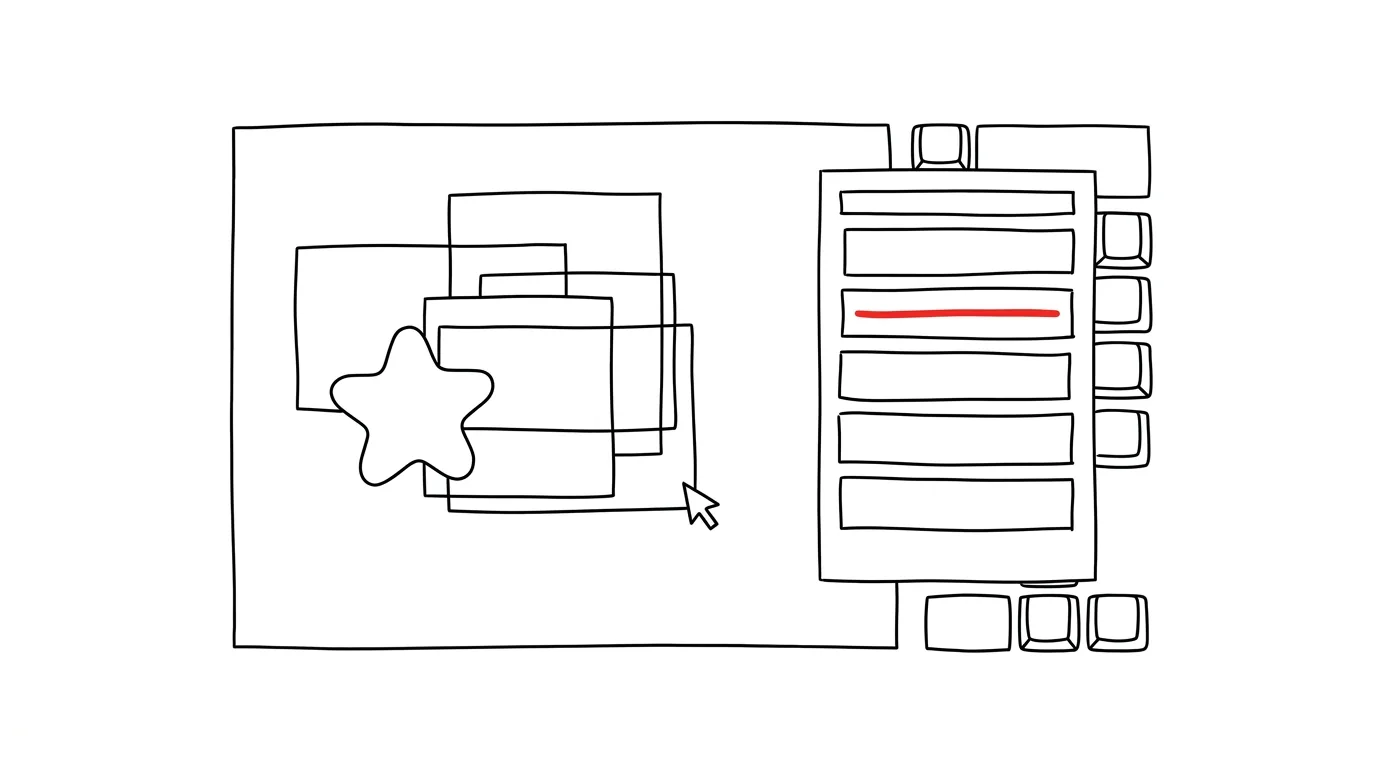
On a slide, an image sits over a text box, under that a background rectangle, and somewhere at the very bottom a logo — and you need to grab exactly the thing at the bottom. You click, but you keep selecting the one on top; you nudge it aside, edit the bottom one, move the top one back. PowerPoint has the Selection Pane for exactly this: a list of every object on the slide where you pick by clicking an item in the list, can temporarily hide objects, and can reorder their stacking — no hunting around the canvas with your mouse.
How to do it
- On the Home tab, open Arrange → Selection Pane (faster: Alt + F10). A list of every object on the current slide opens on the right.
- Click an item in the list to select that object — even if it's completely hidden under others. You can start editing it immediately without touching anything on the slide itself.
- The eye icon next to an item hides that object temporarily: ideal when you need to “get an obstructing image out of the way” and bring it back after editing.
- Dragging items in the list reorders the stacking — whatever's higher in the list sits on top on the slide.
- Double-clicking an item's name renames it — instead of “Rectangle 7,” something like “price background.” On complex slides, that pays off fast.
A bonus without the pane: pressing Tab on the slide cycles through every object one by one — the quickest way to click your way to an elusive element when there aren't too many. Both tricks also work in Word and Excel.
Renaming pays off doubly if you animate the slide: in the Animation Pane, objects appear under their names, so “price background” tells you more at a glance than “Rectangle 7” — and sequencing animations becomes much safer.
A typical scenario
A designer is fine-tuning a title slide: a full-bleed photo, a semi-transparent dark rectangle over it, and a headline on top of that. The client wants the rectangle darkened — but it's under the headline and over the photo, and the mouse keeps grabbing something else. In the Selection Pane, they click “overlay,” adjust the opacity, done. No shuffling layers back and forth, no wrecked alignment.
What you get out of it
Layered slides stop being a patience puzzle. Every object is one click away in a list, complex compositions can be edited safely, and hiding layers lets you check exactly what's sitting on a slide — sometimes revealing a forgotten invisible object that's needlessly bloating the file.
Pro tip
The Selection Pane pairs beautifully with the alignment tool: hold Ctrl in the list and click exactly the objects you want to line up — hidden ones included — then align them all with a single command.
Want to go deeper? The handbook has a whole chapter on it — The app categories that matter.
Similar tips
Custom search shortcuts: “w query” searches Wikipedia
Teach your address bar to search specific sites directly — Wikipedia, Maps, your internal wiki. One letter, a space, your query.
Web clipper: save an article with one keystroke
Ctrl+Shift+K
Ctrl+Shift+K and the article is in your library, tags included. No more bookmarks you'll never find again.
Print to PDF: turn anything into a PDF
Ctrl+P
The virtual printer “Microsoft Print to PDF” makes a PDF out of any app that can print — a webpage, an email, even an invoice from your accounting software.
Was this helpful?
Liked this tip?
I send one like it every week by email. Two minutes to read, hours saved.
The Top 30 tips e-book, free — it lands in your inbox right away.
Then 1 tip a week · no spam · unsubscribe in one click
Prefer a system to single tips? The free email course — seven days, seven emails, one skill a day.