Tips & tricks · Shortcuts · Everywhere · ~5 min a day · 3 min read
Almost every app has a quick switcher: try Ctrl+P or Ctrl+K
Last reviewed:
Ctrl+K
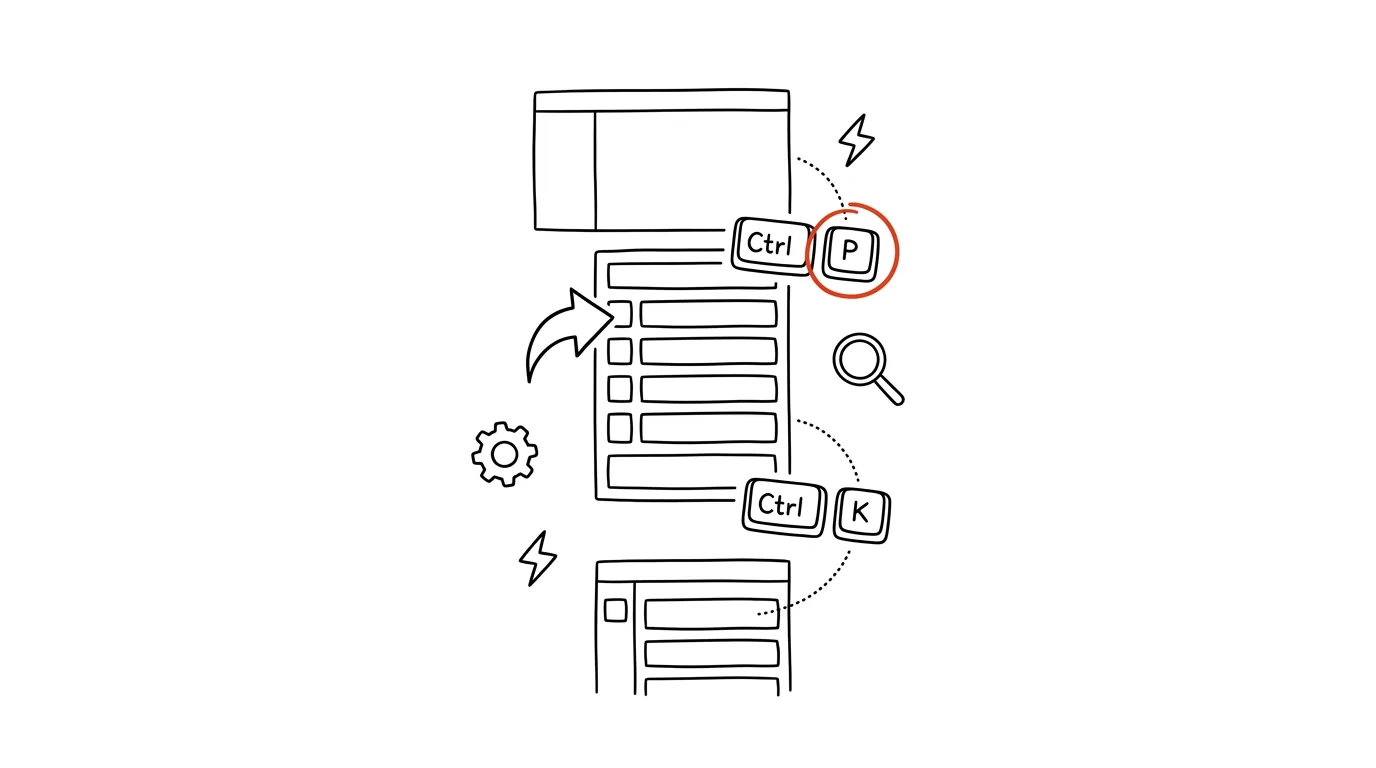
Modern apps ship with a search-driven command palette. It's always faster than the menu — instead of clicking through three levels of nested options, you type a few letters and you're there. It works in almost everything, it's just called something different and triggered by a different shortcut each time, which is why a lot of people never notice it's there.
A typical scenario
Petra, a developer, is looking for the function calculateDiscount in a project with two hundred files. Without a palette, that means opening the file explorer in her editor, clicking through folders by intuition, or maybe using Find in Files and scrolling through the results. A couple of minutes lost, thirty times a day.
With the palette, all it takes is Ctrl + P, typing “calculateDiscount,” and Enter — the file opens with the cursor right where she left it last. The same principle works outside the editor too: in Slack it finds a channel or a coworker, in Notion a page, in the browser an open tab. Once you get used to using one palette, you start looking for it everywhere else — and it's usually there.
How to do it
- In whatever app you're currently using, try Ctrl + P or Ctrl + K (on a Mac, Cmd instead of Ctrl). One of those two shortcuts hits the palette almost every time.
- A text field opens, and as you type, the app searches for files, commands, people, channels, or settings sections based on what you enter. You don't need the exact name — a few letters from anywhere in the word are usually enough.
- In VS Code, Ctrl + Shift + P opens the command palette (not the file palette) — from there you can run practically any editor feature without digging through menus.
- If neither shortcut works, check the app's help menu (often F1 or a Help menu) for “quick switcher,” “command palette,” or “go to anything” — that's usually the term to search for, even if you're using a localized version of the app.
- Once you've found the palette, it's worth learning the app's small conventions too: in Slack, Ctrl + K switches between channels, while in Figma the same shortcut opens a search for components and layers.
The best tools
- Built-in palette in code editors (VS Code, JetBrains) — the fastest route to any file or command, no extra installation needed.
- Built-in switcher in communication and productivity apps (Slack, Notion, Linear, Figma) — works the same way, just with different content depending on the app.
- Raycast or PowerToys Run — when you want the same “type and jump” principle across apps, not just inside one.
- Browser address bar search (Ctrl + L and start typing) — works similarly for open tabs too, if your browser offers a tab switcher shortcut.
What you get out of it
- Time: dozens of saved clicks a day add up to a few minutes — for people who spend hours in an editor or in Slack, easily more.
- Uninterrupted flow: you don't break your train of thought hunting with the mouse for where something was — your hands stay on the keyboard.
- A portable habit: a shortcut you learn once works in dozens of other apps, so the time invested in learning it pays off repeatedly.
- Less reliance on file organization: you don't need to remember the exact folder structure, just what the thing is called.
Pro tip
Where neither Ctrl + P nor Ctrl + K works, try Ctrl + / or look for a magnifying-glass icon with a small shortcut hint next to it — apps often hide it there as a hint.
Want to go deeper? The handbook has a whole chapter on it — The app categories that matter.
Similar tips
cd - takes you back to the folder you came from
Jumping between two directories? You don't have to type the full paths back and forth — “cd -” always jumps to the previous folder.
From the terminal to File Explorer or Finder: open . and explorer.exe .
Open the current folder from the terminal in your graphical file manager with one command: “open .” on a Mac, “explorer.exe .” on Windows and in WSL.
Stop retyping file paths: drag the file into the terminal
Dragging a file from File Explorer or Finder into a terminal window inserts its full path — correctly quoted, without a single typo.
Was this helpful?
Liked this tip?
I send one like it every week by email. Two minutes to read, hours saved.
The Top 30 tips e-book, free — it lands in your inbox right away.
Then 1 tip a week · no spam · unsubscribe in one click
Prefer a system to single tips? The free email course — seven days, seven emails, one skill a day.